One-Click Batch Image Splitting for Stickers
Stop exporting images manually. Learn how to accurately split a sheet of illustrations into individual sticker files with predictable results.
Table of Contents
Converting a Single Canvas
When you draw dozens of stickers on one large sheet, our splitting tool automates the extraction process. What used to take minutes of manual cropping now takes seconds, and each extracted sticker is ready for immediate resizing.
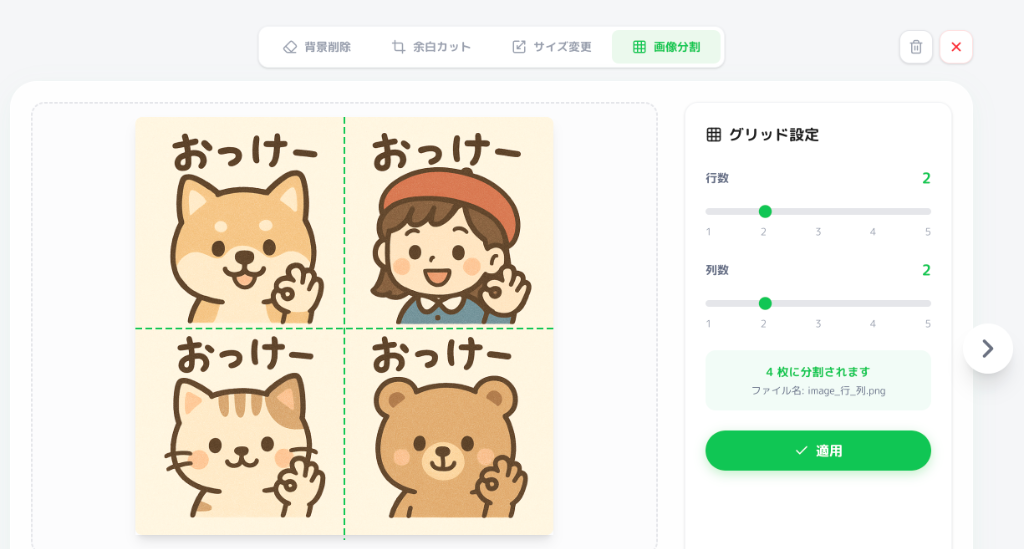
Preferred: Precise Grid Splitting
If your artwork is aligned, 'Grid Split' is the most reliable choice as it cuts exactly where you specify.
If the grid lines don't align, use the 'Margin Cut' tool first to refine the canvas edges before splitting. This ensures perfect crops for every single asset.
Fallback: AI Auto-Split
For irregular layouts where a grid won't work, use the AI-powered 'Auto-Split' to detect and extract subjects automatically.
The Auto-Split feature automatically adds margins to detected subjects to ensure the resulting images are square, making the subsequent resizing process much easier.
Grid Split is generally more predictable. Use Auto-Split as a specialized tool for complex, non-linear layouts.